BlueMaple HXM Pitstop - Sales Order
By We Support on July 18, 2023
BeginnerSales Order
A Sales Order is a confirmation of an order from your customer.
It is usually a binding Contract with your Customer. Once your customer confirms the Quotation you can convert your Quotation into a Sales Order.
To access Sales Order, go to:
Home > Selling > Sales > Sales Order
1. Prerequisites
Before creating and using a Sales Order, it is advised that you create the following first:
2. How to create a Sales Order
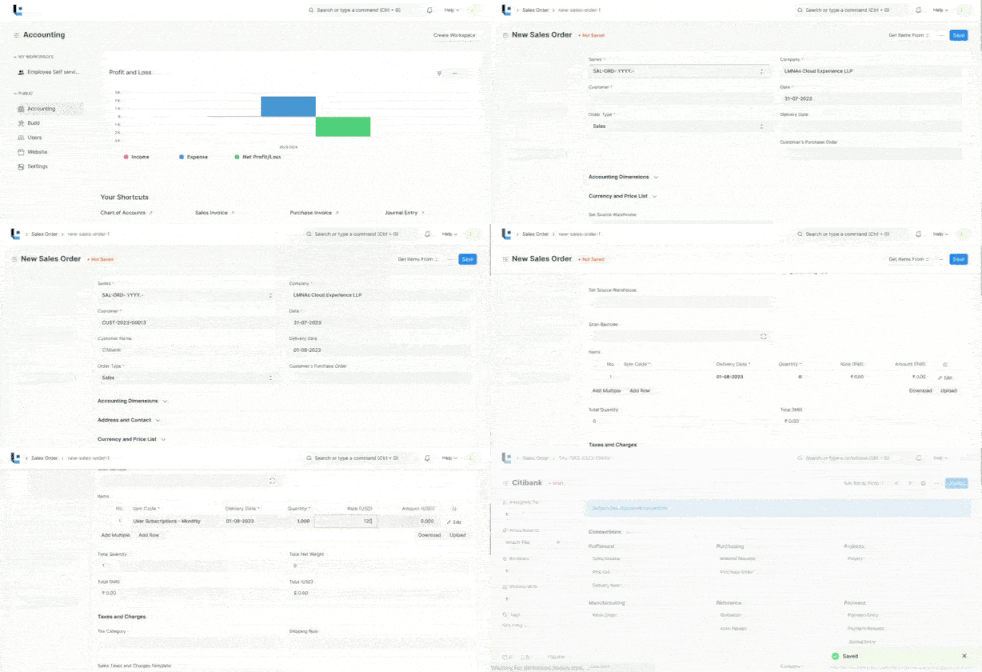
- Create the sales order under the project "Citibank - Limits and Threshold Management"
- Select the Customer.
- Set the 'Delivery Date'.
- With Order Type, you can set whether it's a Sales order, Maintenance order, or from the online Shopping Cart of your website. By default, this value is set to "Sales".
- In the "Customer's Purchase Order" you can enter the Customers Purchase Order No. or other details which may be useful as a reference.
- Under the Accounting Dimensions Enter the Cost center and Project.Enter the Tax Id.
- Enter the Items and quantities to be delivered in the Item table. If Item Prices are set for the items, the Rate field will be fetched automatically. If not, enter the Item Rate manually. You can also overwrite the auto-populated Item Rate in case you want to change that value.
- Click "Save" and then Submit.

2. Features
2.1 Currency and Price List
You can set the currency in which the quotation/sales order is to be sent. If you set a Pricing List, then the item prices will be fetched from that list. Ticking on 'Ignore Pricing Rule' will ignore the Pricing rules set in Accounts > Pricing Rule.
Set the Currency as “USD” and Price list as “Standard Selling”.
2.2 Address and Contact
Enter the Customer's address.
Address, Contact, Contact Email will be fetched if saved in the Customer master.
2.3 Payment Terms
Sometimes payment is not done all at once. Depending on the agreement, half of the payment may be made before shipment and the other half after receiving the goods/services. You can add a Payment Terms template or add the terms manually in this section.
2.4 Terms and Conditions
In Sales/Purchase transactions there might be certain Terms and Conditions based on which the Supplier provides goods or services to the Customer. You can apply the Terms and Conditions to transactions to transactions and they will appear when printing the document.
2.5 Print Settings
Letterhead
You can print your quotation/sales order on your company's letterhead.
3. After Submitting
You will be able to execute further steps (like making a Delivery Note) only after “Submitting” a Sales Order.
Once you “Submit” your Sales Order, you can trigger below actions from the sales order.
- You can Add, Update, Delete items in the Sales Order by clicking on the Update Items button. However you cannot delete items which has already been delivered or has work order assigned to it.
- Status: Once submitted, you can hold a Sales Order or Close it.
- Create: From a submitted Sales Order, you can create the following - Delivery Note ,Work Order,Sales Invoice,Subscription,Payment Request and Payment.
More articles on Selling