BlueMaple HXM Pitstop - Sales Invoice
By We Support on July 19, 2023
BeginnerSales Invoice
A Sales Invoice is a bill that you send to your Customers against which the Customer makes the payment.
Sales Invoice is an accounting transaction. On submission of Sales Invoice, the system updates the receivable and books income against a Customer Account.
To access the Sales Invoice list, go to:
Home > Accounting > Accounts Receivable > Sales Invoice
1. Prerequisites
Before creating and using a Sales Invoice, it is advised to create the following first:
2.How to create a Sales Invoice
A Sales Invoice is usually created from a Sales Order or a Delivery Note. However, you can also create a Sales Invoice directly.
To fetch the details automatically in a Sales Invoice, click on the Get Items from. The details can be fetched from a Sales Order, Delivery Note, or a Quotation.
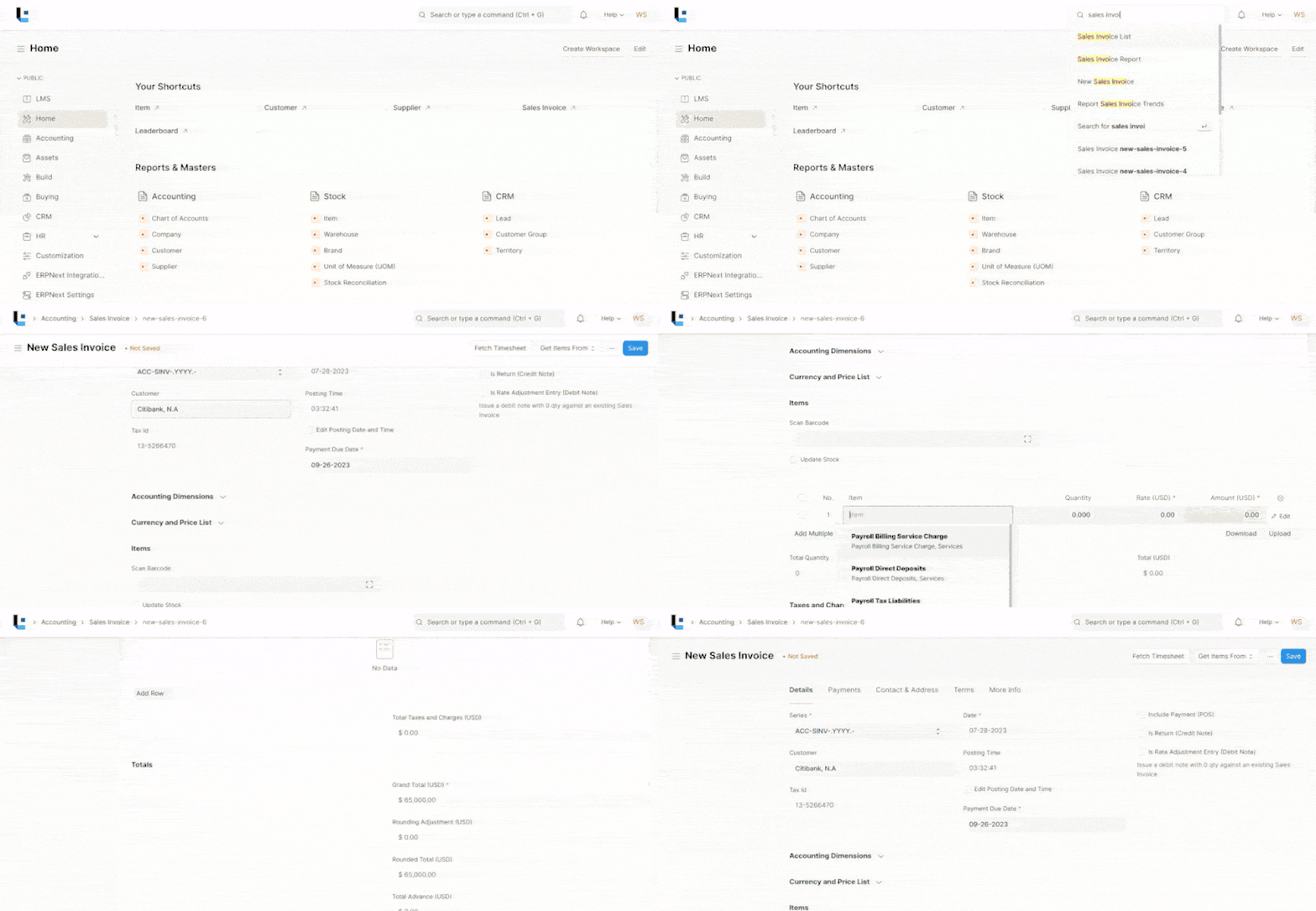
Create Sales invoice from the project “Citibank Limits and Threshold Management”
For manual creation, follow these steps:
- Go to the Sales Invoice list and click on New.
- Select the Customer.
- Set the Payment Due Date.
- In the Items table, select the Items and set the quantities.
- The prices will be fetched automatically if Item Price is added, else add a price in the table.
- The Date and the posting time is always taken as current date and time.You can also edit date and time by clicking “Edit Posting time and date” checkbox.
- Save and Submit.
3. Features
3.1 Accounting Dimensions
Project and Cost Center are treated as dimensions by default.
3.2 Customer PO Details
- Customer's Purchase Order: Track customer's PO No. received, primarily to prevent the creation of duplicate Sales Order or Invoice for the same PO received from the Customer.
- Customer's Purchase Order Date: The date on which the Customer placed the Purchase Order.
3.3 Address and Contact
- Customer Address: This is the Billing Address of the Customer.
- Contact Person: If the Customer is a company, the person to be contacted is fetched in this field if set in the Customer form.
- Shipping Address: Address where the items will be shipped to.
3.4 Currency and Price List
You can set the currency in which the quotation/sales order is to be sent. If you set a Pricing List, then the item prices will be fetched from that list. Ticking on 'Ignore Pricing Rule' will ignore the Pricing rules set in Accounts > Pricing Rule.
Set the Currency as “USD” and Price list as “Standard Selling”.
3.5 Timesheet
If you want to bill Employees working on Projects on an hourly basis (contract based), they can fill out Timesheets which consists of their billing rate. When you make a new Sales Invoice, select the Project for which the billing is to be made, and the corresponding Timesheet entries for that Project will be fetched.
If your Company's Employees are working at a location and it needs to be billed, you can create an Invoice based on the Timesheet.
3.6 Accounting Details
In the accounting details input the debit to as “Debtors”.
3.7 Commission
If the sale took place via one of your Sales Partners, you can add their commission details here. This is usually fetched from the Sales Order/Delivery Note.
3.8 Sales Team
Sales Persons: We can add multiple Sales Persons who may have worked on this deal. This is also fetched from the Sales Order/Delivery Note.
More articles on Selling