BlueMaple HXM Pitstop - Delivery Note
By We Support on July 19, 2023
BeginnerDelivery Note
A Delivery Note is made when a shipment is shipped from the company’s Warehouse to the customer.
A copy of the Delivery Note is usually sent with the transporter. The Delivery Note contains the list of Items that are sent in the shipment and updates the inventory. The Delivery Note is an optional step and a Sales Invoice can be created directly from a Sales Order.
To access the Delivery Note list, go to:
Home > Stock > Stock Transactions > Delivery Note
1. Prerequisites
Before creating and using a Delivery Note, it is advised that you create the following first:
- Sales Order
2. How to create a Delivery Note
The entry of the Delivery Note is very similar to a Purchase Receipt. It is usually created from a “Submitted” Sales Order (that is not shipped) by clicking on Create > Delivery.
To create a Delivery Note manually (not recommended), follow these steps:
- Go to the Delivery Note list, click on New.
- When we enter the customer name, the tax id automatically gets pulled up.
- For entering the Item details click on Get Items from > Sales Order .The Items,Quantity ,UOM and Rates will be fetched automatically.
- Enter the cost center and the project under the accounting dimensions.
- Save and Submit.
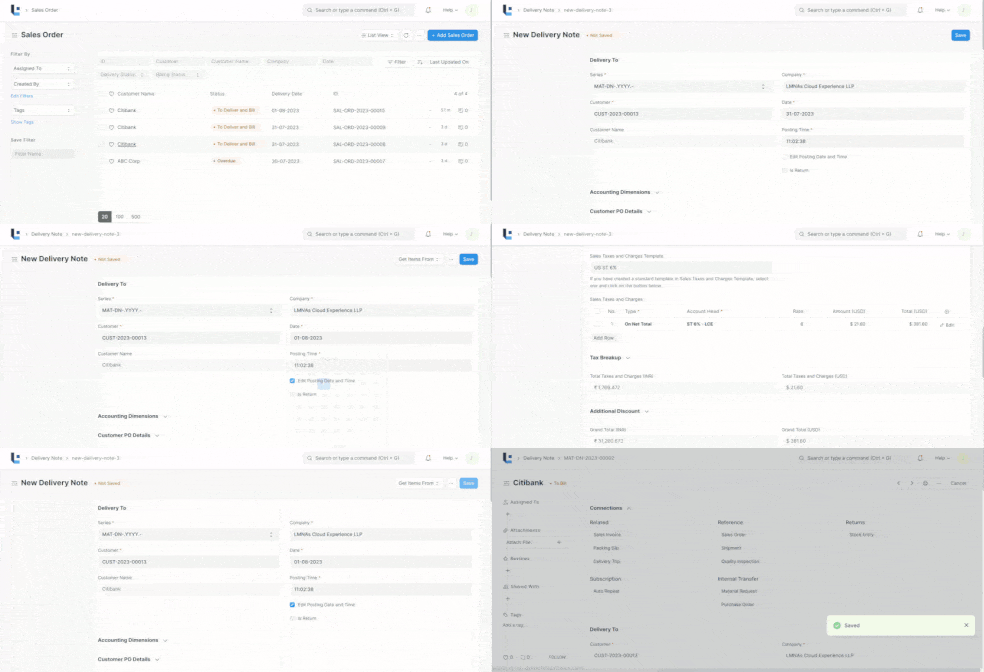
To fetch Items from a Sales Order, click on Get Items from > Sales Order. This will open a popup from where you can search for Sales Orders and select one.
You will notice that all the information about unshipped Items and other details are carried over from your Sales Order if you create the Delivery Note from there.
You can also edit the posting date and time, the current date and time are set when you create the Delivery Note.
More articles on Selling