BlueMaple HXM Pitstop - Address
By We Support on July 19, 2023
BeginnerAddress
You can record the addresses associated with a Lead, Customer, Supplier, Shareholder, Sales Partner or a Warehouse.
You can also add an Address as a standalone record without linking it to any of the entities listed above.
To access the Address list, go to:
Home > CRM > Address
or
Type "Address List" in search menu and click on Add address.
1. How to create an Address
- Go to the Address list and click on New.
- Select Address Type.
- Enter details in Address Line 1, Address Line 2, City/Town, County, State, Country.
- Enter Email Address, Phone and Fax.
- Enter Link DocType and Link Name to link this address to customer, supplier etc.
- Save.
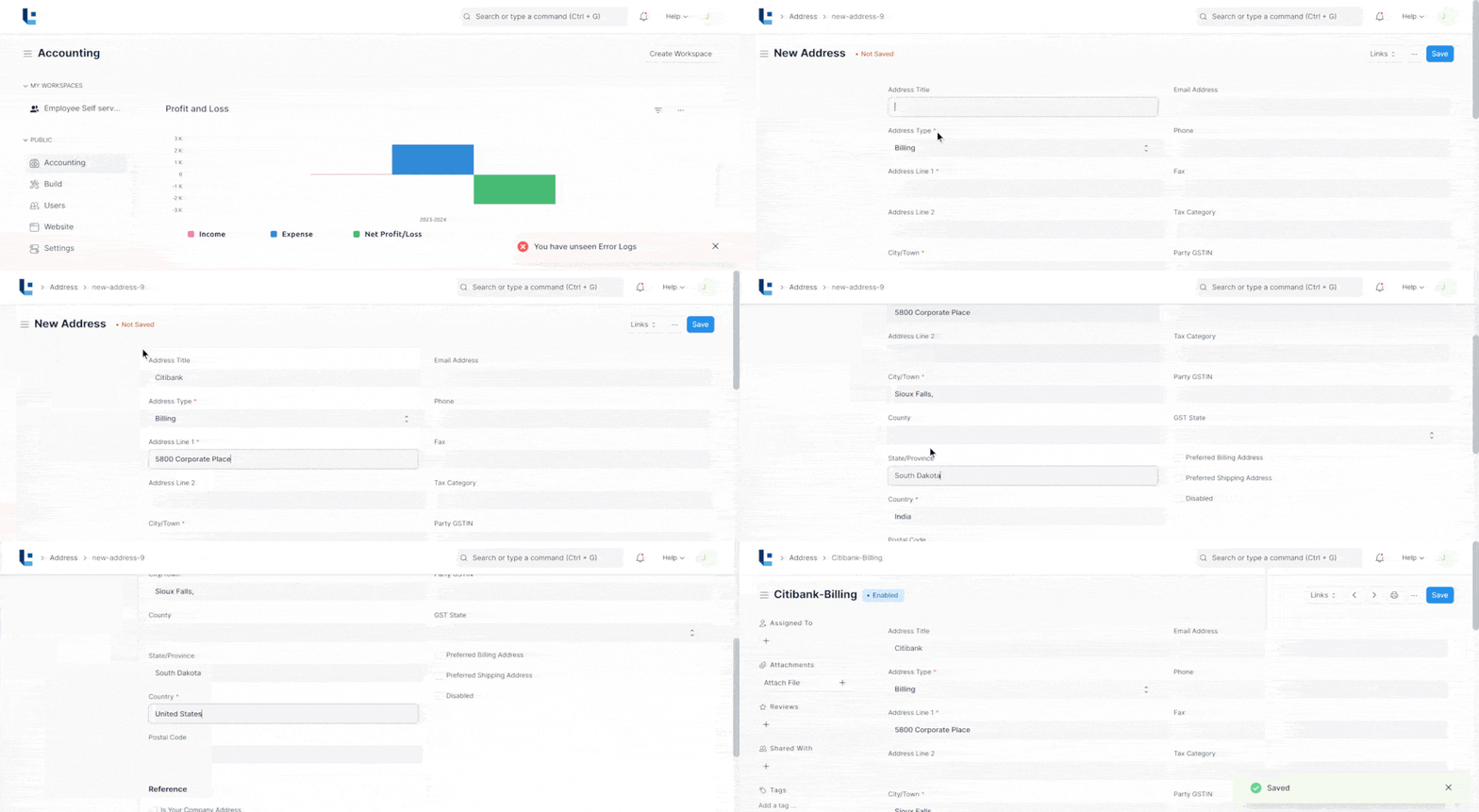
You can also add an Address from the Customer or Supplier record by clicking on “New Address" button
2. Features
2.1 Link an Address to Multiple Entities
An address may be linked to multiple customers or multiple suppliers.
An address can also be linked to customers and suppliers at the same time.
2.2 Preferred Billing Address and Shipping Address
If you check 'Preferred Shipping Address', the address would be automatically added in the Shipping Address in Sales Order, Sales Invoice and Delivery Note transactions.
Similarly, if you check 'Preferred Billing Address', the address would be automatically added in the Billing Address in Sales Order, Sales Invoice and Delivery Note transactions.
More articles on Master Data