BlueMaple HXM Pitstop - Expense Claim
By We Support on July 6, 2023
BeginnerExpense Claim
Expense Claim is made when employees make expenses out of their pocket on behalf of the company.
For example, if they take a customer out for lunch, they can make a request for reimbursement via the Expense Claim form.
To access an Expense Claim, go to
Human Resources > Expense Claims > Expense Claim
1. How to create a Expense Claim
- Go to: Expense Claim > Add Expense Claim
- Select the Employee Name in the 'From Employee' field.
- Select the Expense Approver.
- Enter the Expense Date, Expense Claim Type and the Amount.
- Additionally, you can also enter the Expense Taxes and Charges.
- In Accounting Details, Select the Payable Account as Expense Payable.
- In Accounting Dimensions,Select the Project and Cost Center.
- Save and Submit
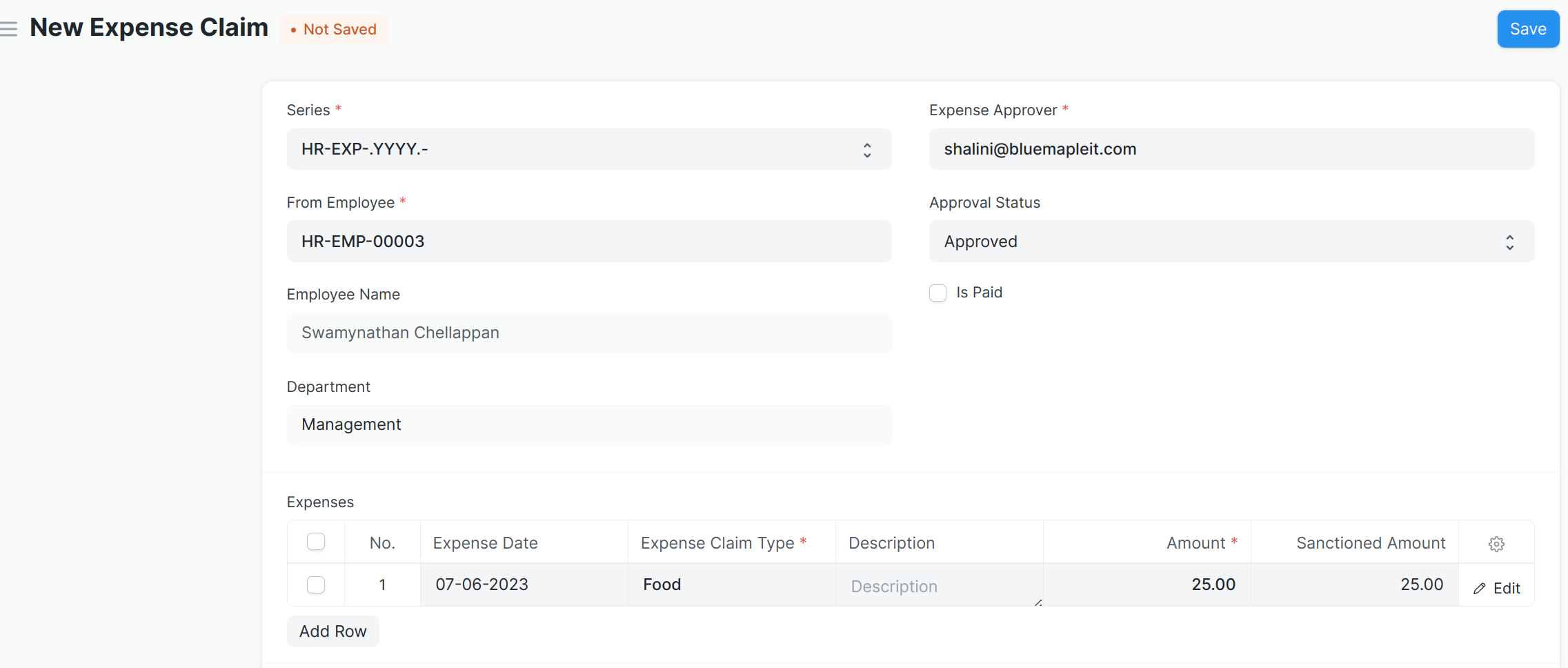
Set the Employee ID, date, the list of expenses, and corresponding taxes that are to be claimed and “Submit” the record.
2. Approving Expenses
Approver for the Expense Claim is selected by an Employee himself. Employee can choose from the list of users who are configured as Expense Approvers for their department.
When a new Expense Claim is created, if the selected expense approver does not have access to it, the document is shared with the approver with "submit" permission.
After saving Expense Claim, Employee should Assign document to Approver. On assignment, approving user will also receive email notification. To automate email notification, you can also setup Email Alert.
Expense Claim Approver can update the “Sanctioned Amounts” against Claimed Amount of an Employee. If submitting, Approval Status should be submitted to Approved or Rejected. If Approved, then Expense Claim gets submitted. If rejected, then Expense Approver's comments can be added in the Comments section explaining why the claim was approved or rejected.
3.Related Topics
More articles on HR