BlueMaple HXM Pitstop - Purchase Order
By We Support on July 18, 2023
BeginnerPurchase Order
A Purchase Order is a binding contract with your Supplier that you promise to buy a set of items under given conditions.
It is similar to a Sales Order but instead of sending it to an external party, you keep it for internal records.
Home > Buying > Purchasing > Purchase Order
1. Prerequisites
Before creating and using a Purchase Order, it is advised that you create the following first:
2. How to create a Purchase Order
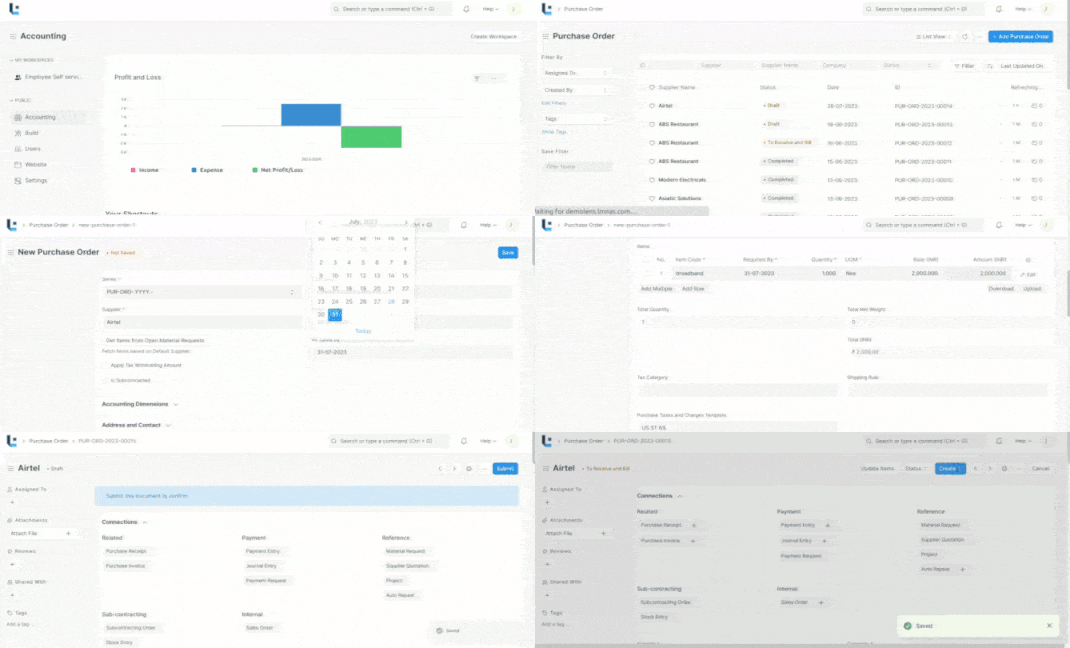
A Purchase Order can be automatically created from a Supplier Quotation.
- Go to the Purchase Order list, click on New.
- Select the Supplier, required by date.
- Under the Accounting Dimensions Enter the Cost center and Project.
- In the Items table, select the Item by code, you can change the required by date for each item.
- Set the quantity and the price will be fetched automatically if set in the Item master.
- Set taxes.
- Save and Submit.
3. Features
3.1 Address and Contact
- Select Supplier Address: The Supplier's billing address.
- Select Shipping Address:The Buyer's Shipping address .
- Address, Contact, Contact Email will be fetched if saved in the Supplier master.
3.2 Currency and Price List
You can set the currency in which the purchase order is to be stored. If you set a Pricing List, then the item prices will be fetched from that list. Ticking on Ignore Pricing Rule will ignore the Pricing Rules set in Accounts > Pricing Rule.
Set the Currency as “USD” and Price list as “Standard Buying”.
3.3 Payment Terms
Sometimes payment is not done all at once. Depending on the agreement, half of the payment may be made before shipment and the other half after receiving the goods/services. You can add a Payment Terms template or add the terms manually in this section.
3.4 Terms and Conditions
In Sales/Purchase transactions there might be certain Terms and Conditions based on which the Supplier provides goods or services to the Customer. You can apply the Terms and Conditions to transactions to transactions and they will appear when printing the document.
3.5 Print Settings
Letterhead
You can print your quotation/sales order on your company's letterhead.
3.6 After Submitting
Once you “Submit” your Purchase Order, you do the below actions.
- You can Add, Update, Delete items in the Purchase Order by clicking on the Update Items button. However you cannot delete items which has already been received.
- Status: Once submitted, you can hold a Purchase Order or Close it.
- Create: From a submitted Purchase Order, you can create the following:
- Purchase Receipt - A receipt indicating you've received the items.
- Purchase Invoice - An invoice/bill for the purchase order.
- Payment Entry - A payment entry indicates that payment has been made against a purchase order.
- Journal Entry - A Journal Entry is recorded in the general ledger.
More articles on Buying