BlueMaple HXM Pitstop - Payment Entry
By We Support on July 18, 2023
BeginnerPayment Entry
A Payment Entry is a record indicating that payment has been made for an invoice.
Payment Entry can be made against the following transactions.
- Sales Invoice
- Purchase Invoice
- Sales Order (Advance Payment)
- Purchase Order (Advance Payment)
- Expense Claim
- Internal Transfer
Home > Accounting > Accounts Receivable/Payable > Payment Entry
1. Prerequisites
A Payment Entry can also be created directly then linked to an order/invoice later. Before creating and using Payment Entry, it is advised to create the following first:
If you're following the Sales/Purchase Cycle, you'd need the following:
- Sales Order (Advance Payment)
- Purchase Order(Advance Payment)
- Sales Invoice
- Purchase Invoice
2. How to create a Payment Entry
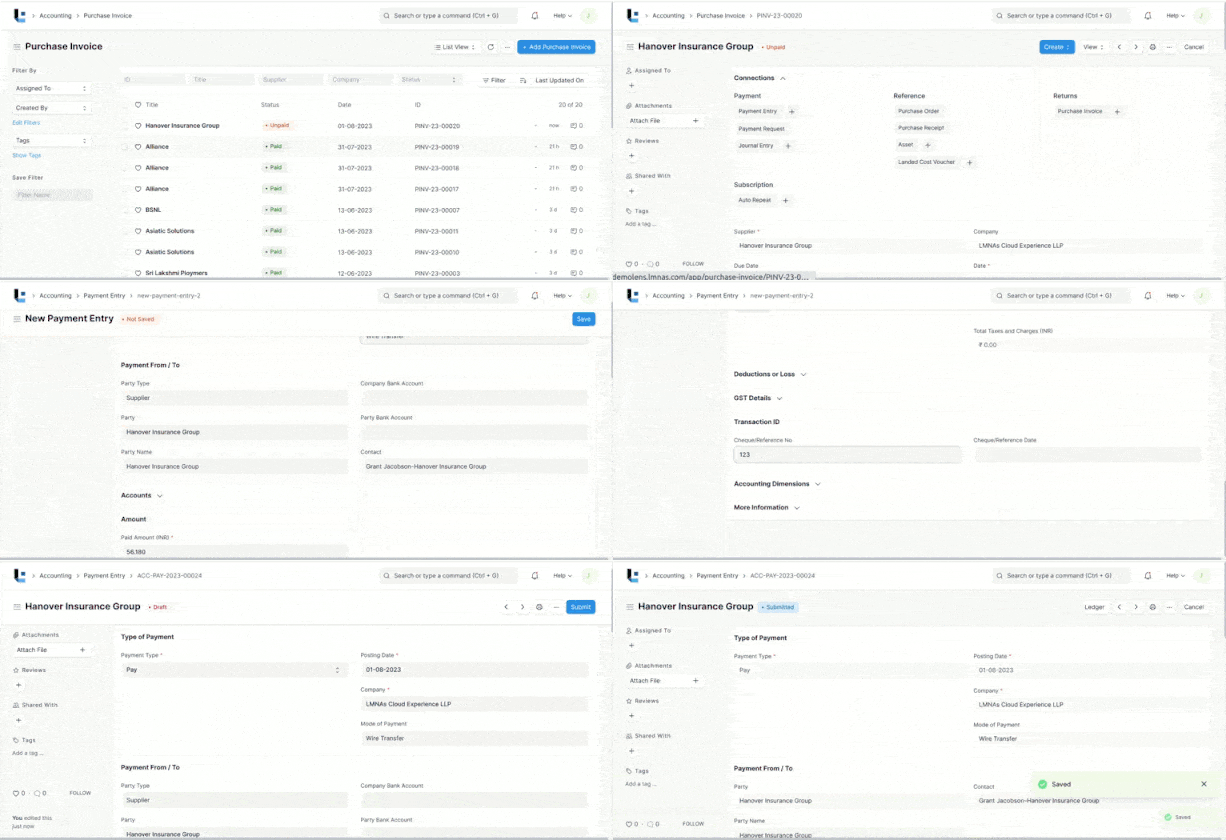
On submitting a document against which Payment Entry can be made, you will find the Payment option under the Create button.
- Change the posting date.
- The Payment Type will be set based on the transaction you're coming from. The types are 'Receive', 'Pay', and 'Internal Transfer'.
- The Party Type, Party, Party Name will be fetched automatically.
- The Account Paid To and Account Paid From will be fetched as set in the Company Form.
- The Amount Paid will be fetched from the Invoice.
- Save and Submit.

2.1 Creating a Payment Manually
A Payment Entry created manually will have no order/invoice linked to it.
- Go to the Payment Entry list and click on New.
- Select the Party Type and the respective Customer/Supplier.
- Select the Bank Account/Cash Account Paid To and Paid From. Enter the Cheque Number and reference date.
- Enter the Amount Paid.
- Save and Submit.
3. Features
3.1 Setting Mode of Payment
Mode of Payment: When we click into the mode of payment different mode payments can be Bank, Cash, Wire Transfer,Bank draft ,Check ,Credit card etc.
3.2 Payment From/To
Party Type: Can be Customer, Supplier, Employee, Shareholder.
- Party: The specific party for which the Payment Entry is made.
- Party Name: The name of the party, this is fetched automatically.
3.3 Accounts
Party Balance: The overall amount receivable or payable from Customer or Supplier from Invoices set in the current Payment Entry. Paid amounts will be positive and if advance payments are made, they will be negative.
- Account Paid From: The Account from which the amount will be deducted when Payment is submitted.
- Account Paid To: The Chart of account to which the amount will be added when Payment Entry is submitted.
- Account Currency: The Currencies of these accounts will be fetched as set in the account and cannot be edited here.
- Account Balance: The total amount balance from all the invoices of the selected accounts.
- Paid Amount: The total amount paid for the current Payment Entry is shown in this field.
3.4 Reference
Fetching outstanding Invoices
This can be used to make payments to multiple Sales or purchase Invoices using one Payment Entry. When creating a new Payment Entry, on clicking the Get Outstanding Invoice button all the outstanding Invoices and open Orders will be fetched for the party.We need to enter the 'Paid Amount'.
If the Party has not made full payment, enter the amount paid in the 'Allocated' field.
If creating Payment Entry for a Customer, the Payment Amount will be allocated against a Sales Invoice. On the same line, when creating Payment Entry for a Supplier, Payment Amount will be allocated against a Purchase Invoice.
Payment References table
- Type: Whether the payment is being made against a Sales Invoice, or a purchase invoice or journal entry
- Name: The particular transaction ID is fetched/selected here.
- Total Amount: The total amount of one Invoice/Journal Entry in the row.
- Outstanding: The amount to receive/to pay for this invoice.
- Allocated: If the Paid Amount is less than the invoice amount only the paid amount will be allocated to the invoice(s) fetched in the Payment Entry.
- Unallocated Amount:When a Payment Entry is made and the Paid Amount is more than the total invoice amount, it is stored in the Customer's/Supplier's account. This amount is hence currently 'Unallocated'. Unallocated amount can be used against future invoices.
More articles on Accounting